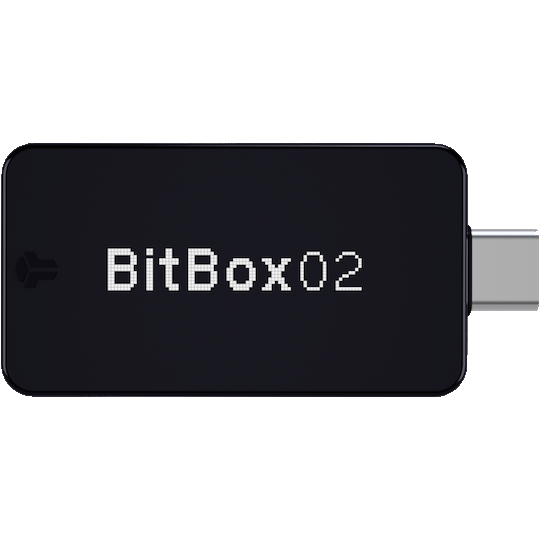
MicroSD Backup: Unlike most wallets, BitBox02 automatically backs up your recovery phrase to the included microSD card during setup, making it beginner-friendly but requiring card safety.
In-App Guidance: The BitBoxApp (desktop or Android) provides a secure, step-by-step walkthrough; always download it directly from the official swiss-made bitbox.swiss site.
Device Verification: Upon plugging in, the app verifies the device authenticity to ensure it hasn't been tampered with before you generate your private keys.
Touch Sensors: You interact with the device using invisible touch sensors on its edges to enter passwords and confirm transactions, keeping the screen clean for visibility.
Prerequisites
BitBox02 Device
Provided USB-C cable
Computer with latest BitBoxApp installed
MicroSD card (included with the device)
Step-by-Step Setup
Unbox & Connect: Connect your BitBox02 to your computer using the provided USB-C cable. Touch the sensors on both sides to wake it.
Install BitBoxApp: Download and install the official BitBoxApp from the bitbox.swiss website.
Initialize Device: Open the app and follow the on-screen instructions to initialize your new wallet.
Set Device Password: Choose a strong, unique password. You will need this every time you use the device.
Create Backup: Insert the provided MicroSD card into the BitBox02 slot. The app will encrypt and store your recovery information on the card.
Verify Backup: Perform a backup verification check within the BitBoxApp to ensure your recovery data is correctly stored and readable.
Common Pitfalls
Losing the SD Card: Your SD card is the primary way to recover your wallet. Store it in a secure, fireproof location.
Forgotten Password: There is no 'forgot password' feature. If you forget your device password, you will need your backup to restore.
Delayed Backup Verification: Always verify your backup immediately after setup. Do not assume it worked.
Counterfeit Devices: Only purchase BitBox02 devices from official sources or authorized resellers to avoid hardware tampering.